|
Create Fully Accessed Share
2017/12/18 |
|
Install Samba to Configure File Server.
For example, Create a fully accessed shared Folder which anybody can read and write, and authentication is not required.
|
|
| [1] | Configure Samba. |
|
[root@smb ~]#
[root@smb ~]# dnf -y install samba samba-client mkdir /home/share [root@smb ~]# chmod 777 /home/share
[root@smb ~]#
vi /etc/samba/smb.conf # line 7: add unix charset = UTF-8
dos charset = CP932 # line 9: change (Windows default) workgroup = WORKGROUP
# line 11: IP addresses you allow to access hosts allow = 127. 10.0.0.
# line 12: add (no auth)
map to guest = Bad User
# add to the end # any Share name you like
[Share]
    # shared directory
    path = /home/share
    # writable
    writable = yes
    # guest ok
    guest ok = yes
    # guest only
    guest only = yes
    # fully accessed
    create mode = 0777
    # fully accessed
    directory mode = 0777
systemctl start smb nmb [root@smb ~]# systemctl enable smb nmb |
| [2] | If Firewalld is running, allow Samba service. |
|
[root@smb ~]# firewall-cmd --add-service=samba --permanent success [root@smb ~]# firewall-cmd --reload success |
| [3] | If SELinux is enabled, change SELinux Context. |
|
[root@smb ~]# setsebool -P samba_enable_home_dirs on [root@smb ~]# restorecon -R /home/share |
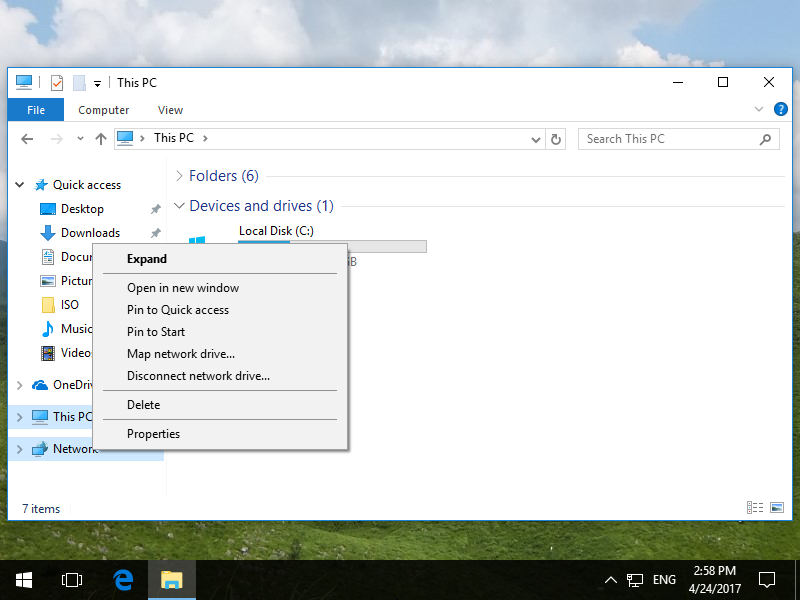
| [4] | It's the way to access to the shared folder. This example is on Windows 10. Select [Computer] - [network] - [Map Network Drive]. |
|
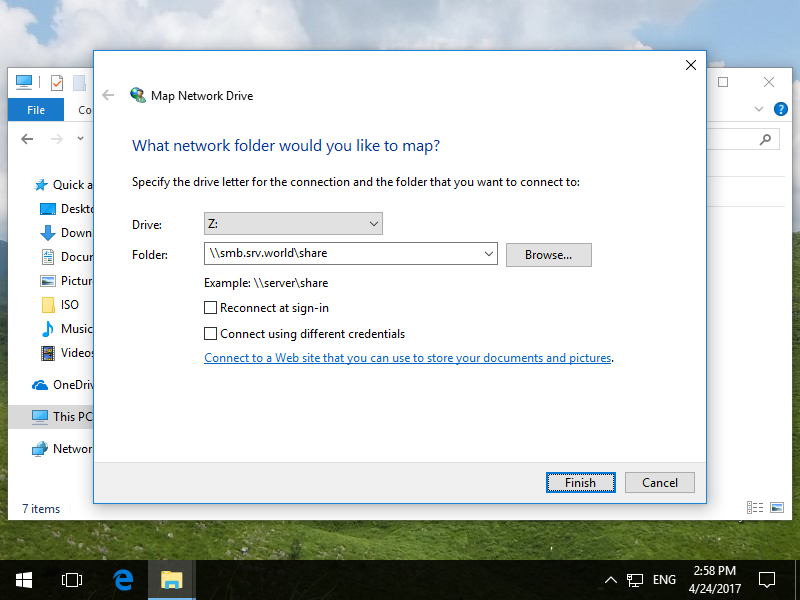
| [5] | Specify the shared folder's place in Folder section and Click the [Finish] button to enter. |
|
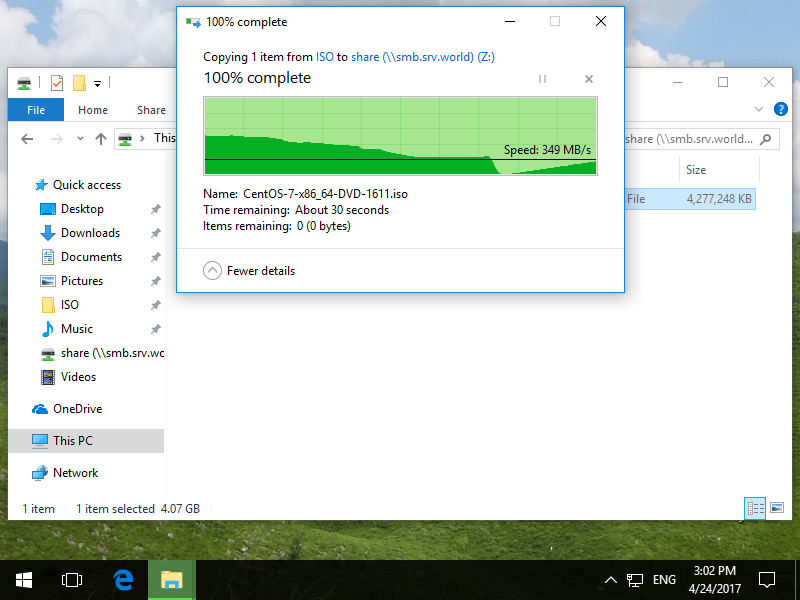
| [6] | Just accessed to the shared Folder. |
|